Permissions
What the OS asks for, why each one is needed, and what breaks without it.
MiPrep asks for the narrowest set of permissions that lets it hear a call. Grant them once, before your first interview — not during one.
macOS
| Permission | Why | Without it |
|---|---|---|
| Screen Recording | macOS routes system audio — the interviewer's voice — through the same permission as screen capture. It is also what reads an on-screen coding question. | The interviewer is not heard at all. This is the one that silently ruins a session. |
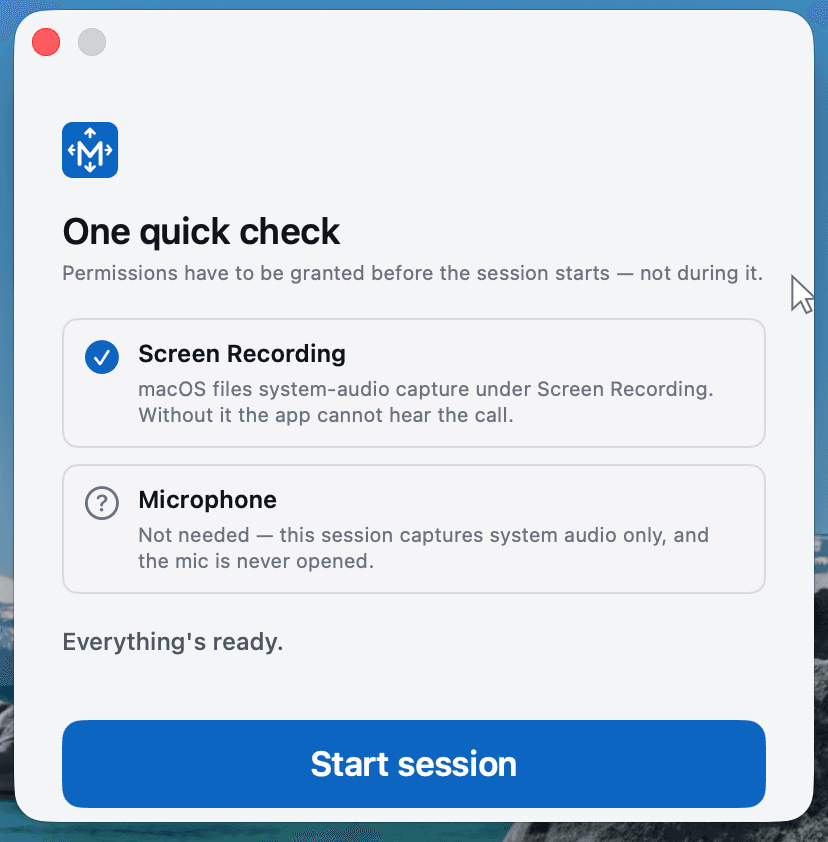
The microphone is not requested, and is never opened. A session captures system audio only — the interviewer's side. The app's own permission screen says so, and there is one permission to grant on macOS, not two.
Screen Recording is the permission people skip because of its name. On macOS there is no way to capture another app's audio without it.
Grant it in System Settings → Privacy & Security → Screen & System Audio Recording, and make sure the toggle beside Edge Sync is on.
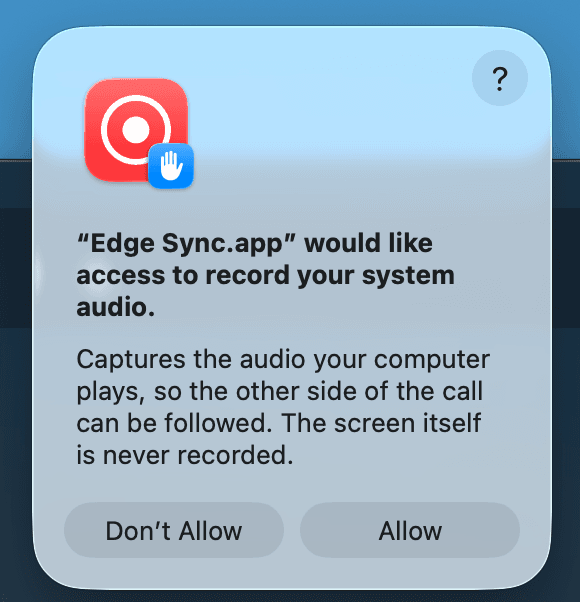
The app checks for you before a session starts, so you are never discovering a missing permission mid-interview:
Windows
Windows has no screen-recording prompt, and no microphone prompt either — system audio is captured through the audio stack directly. There is nothing to grant.
The recording indicators
While a session is live, macOS shows the purple screen-recording dot, because system audio is captured under that permission. There is no orange microphone dot: the mic is never opened.
The indicator cannot be suppressed by any application, and we do not try. It is the same one Zoom, Teams and Meet raise — already lit during any call where somebody is sharing a screen.