Sign in
A code by email, through your browser — no password to lose.
There is no password. Signing in happens once per machine, not once per interview.
The three steps
1. Press Sign in with MiPrep in the app.
It opens your normal browser rather than an in-app window, on purpose: the session lands in the browser you already use, so signing in here also signs you in to the web app where your prep material lives.
2. Enter your email.
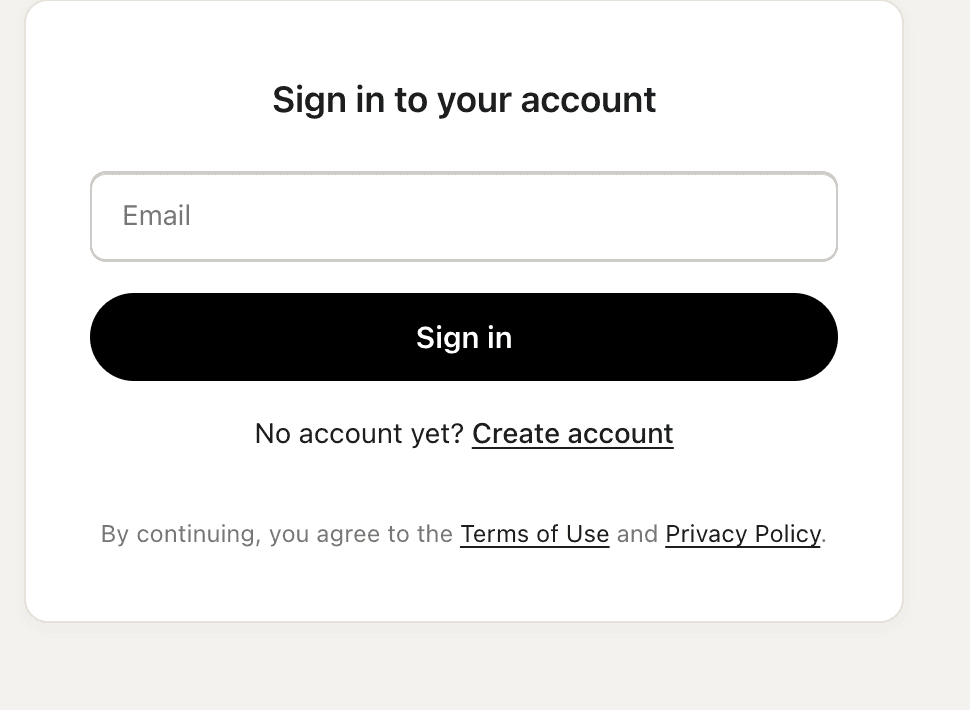
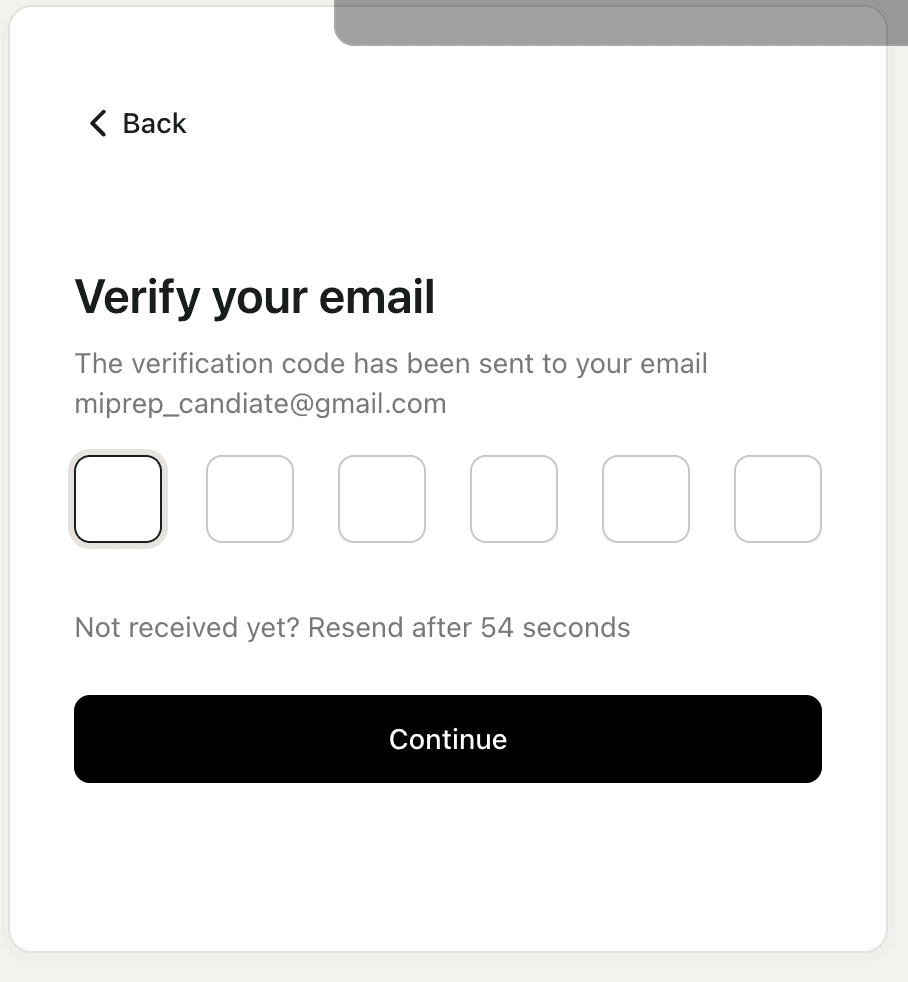
3. Enter the six-digit code.
The browser then hands you back to the app, which flips out of the sign-in screen on its own. You do not need to click anything in the app.
The code did not arrive
- Confirm you typed the address correctly. The code goes to whatever you entered, not to the account on file.
- Wait 60 seconds. Delivery is not always instant. The page will not let you resend before the timer runs out.
- Use Resend. Codes expire after 10 minutes.
- Still nothing after three tries: email [email protected] from — or naming — the address you are using, and we can read the send log.
The browser signed me in but the app did not notice
The app is waiting for the browser to hand the session back. If it is still showing the sign-in screen a minute later:
- Quit MiPrep from the × and open it again.
- Press Sign in with MiPrep once more.
If it happens twice in a row, send a diagnostic report — see Getting support. This is worth reporting rather than working around; it is not something you should have to retry.
Signed out unexpectedly
Signing in on a new machine can end the session on an old one. Sign in again; the app picks up where it was and no prepared material is lost.